Protect every flow on your Switch Server.
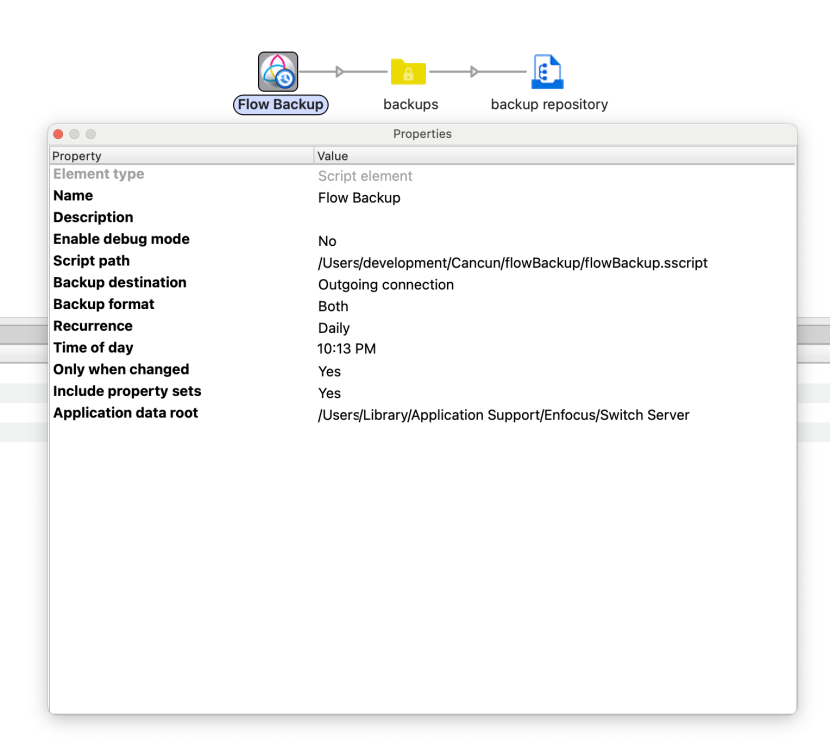
Archive Flows takes scheduled backups of the flows on your Switch Server, so a deleted flow, a bad edit or a lost server can be recovered. Drop the element into any active flow, choose a schedule, and it runs on its own. No third-party application is needed.
Two kinds of backup, alone or together
- One importable .sflow file per flow. The same format as File > Export Flow, including the script packages, action lists and images the flow references. Restore a single flow with File > Import Flow, on the same Switch Server or on another one.
- A raw snapshot. A byte-for-byte copy of the flows folder, and optionally the PropertySets folder, from the Switch application data root. Use it to return every flow on the server to the state of the backup in one step.
Back up exactly what you need
- Back up all flows (including flows added later), only the flows you pick from a list, or all flows except the ones you pick.
- Schedule backups daily, weekly, monthly or every few hours, at a time of day you choose.
- Skip unchanged backups: when no flow and no file a flow references has changed since the last backup, the scheduled backup is skipped.
- Add several Archive Flows elements to back up different flows on different schedules.
Keep backups where you want them
- Backup folder: backups are kept in a folder of your choice, for example on a network share, and the oldest are deleted automatically once the number you set is reached. Each backup also sends a JSON report to the outgoing connections, ready for an e-mail notification or a log.
- Outgoing connection: each backup is sent out of the element as a folder job, so the rest of the flow decides where it goes: an archive folder, an FTP server or cloud storage. Nothing is kept on the Switch Server.
- Every backup is a dated folder (FlowArchive_YYYYMMDD_HHMMSS) with a FLOWS.txt and a manifest.json that list which file holds which flow, plus the server name, Switch version and any referenced files that no longer exist.
- A backup is only given its final name once it is complete, so an interrupted backup never looks like a finished one.
- Missed backups are caught up as soon as the flow is active again, and a failed backup is logged and retried every 15 minutes until it succeeds.
- The Switch application data folder is found automatically, including one moved with the Application Data Root Tool.
Requirements
Switch 2024 Fall or later. Step-by-step restore procedures for single flows and for a whole server are in the app documentation.
Disclaimer
Archive Flows and its documentation are provided "as is", without warranty of any kind, express or implied. All Systems Integration is not responsible or liable for any errors or omissions in the app or its documentation, or for any loss or damage arising from its use, including lost, incomplete or unrestorable flows, data or backups. Test your backups and restore procedures regularly and keep independent copies of critical flows.