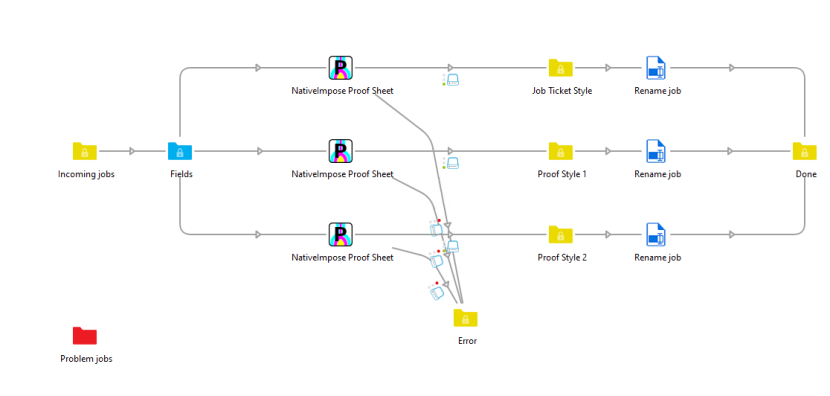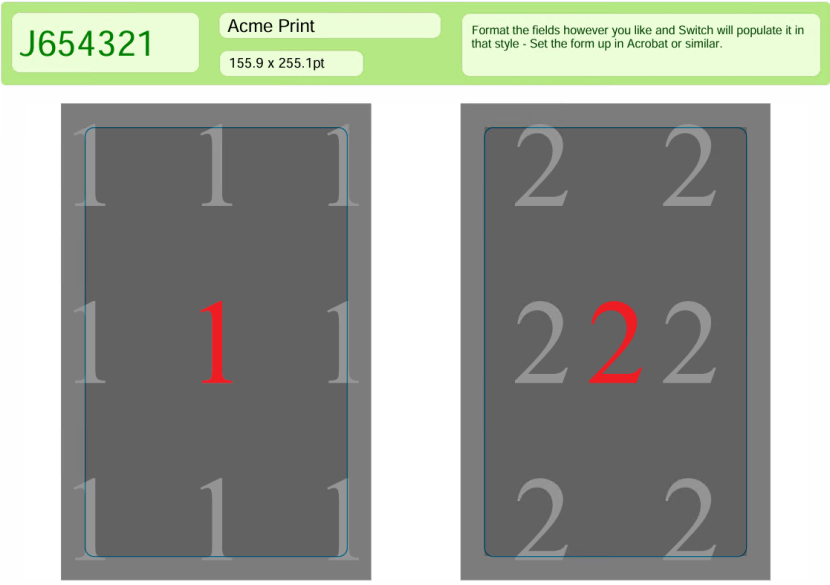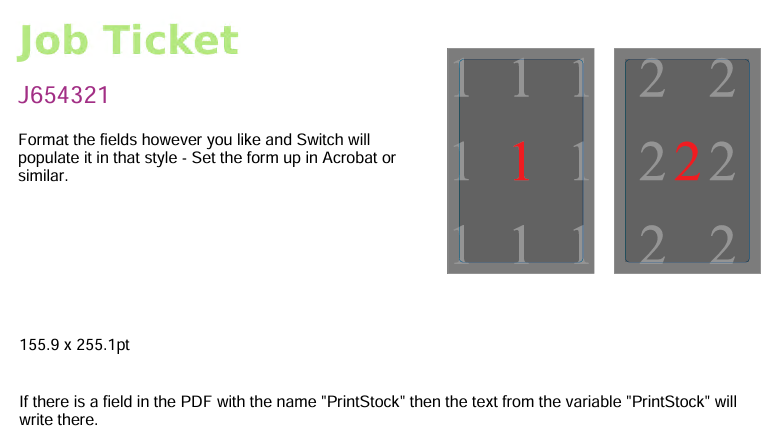
A graphic designer designs a PDF with the field "PrintStock" - the flow designer makes sure that private data key "PrintStock" is mapped to the job stock - the form fills out! Formatting is matched, information is displayed!
The Native Impose Proof Sheet Generator eliminates the compromise between automated production efficiency and high-end visual presentation. Built natively for Enfocus Switch, this engine empowers designers to build rich, branded proof templates, job tickets, or to populate any PDF, using standard Adobe Acrobat forms.
Instead of forcing you to build rigid layouts inside code or configure tedious property mappings, the engine automatically matches form field names to job metadata, private data, or file specs. By utilizing native form flattening, it locks in the designer's exact font families, point sizes, colors, and multi-line formatting. Combined with intelligent multi-page spreading, automated keylines, and zero-origin coordinate sanitization, it delivers professional, customer-ready proofs every single time.
Design a PDF any way you like, add form fields and format them how you like - then pass in provate data of the same name - presto!
1. Core Architecture & Requirements
Upstream Normalization: Incoming PDFs must have a normalized (0,0) MediaBox origin (handled cleanly by the Native Impose Normalizer, Pitstop, or other prepress tools). Unnormalized files will automatically route to the Switch error connection.
Template-Driven Design: All typography, font sizes, colors, and layout structure are controlled entirely within the master PDF template using standard Acrobat form fields. A company can design proof sheet, job tickets or any other PDF in the company style, using images, logos, corporate fonts.
2. Template Field Naming Conventions
The engine inspects form fields dynamically. Name your Acrobat form fields using these reserved keywords to inject automated job data, or use any custom key that matches your Switch Private Data keys:
ArtworkPreview: The bounding box where the customer's scaled artwork and keyline border will be rendered.
JobName: Automatically injects the file name of the incoming job.
TrimSize or Dimensions: Automatically computes and displays the active trim/media size in millimeters (e.g., 210.0 x 297.0 mm). Use an alternate variable name, eg Size, if you want to place your own values.
PageCount: Automatically calculates total pages (e.g., 1 page or 12 pages).
CroppingMode: Displays the selected cropping rule (Trim, Bleed, or Untouched).
SheetInfo: Automatically generates multi-sheet pagination text for multi-page documents (e.g., Sheet 1 of 3).
Custom Keys: Any other text field name (e.g., ClientName, CustomerNotes) will look up matching Private Data attached to the Switch job. This is very powerful you can define any field you like in the layout design - name a field "PrintStock" and then pass private data "PrintStock=350 gloss" and that text field will fill out. You can go to town here and populate any text you like.
3. Flow Element Properties
Template Path: Absolute file path to the master Acrobat PDF template.
Cropping Mode: Choose how input art is clipped (Trim, Bleed, or Untouched).
Printing Side: Control flow-level sheet batching:
Auto: Single-page files output as 1-up single-sided proofs; multi-page files pair into 2-up spreads.
SingleSided: Forces 1 page per proof sheet.
DoubleSided: Forces 2 pages per proof sheet (duplex spread layout).